PanelProject
A Git server on a company network
A GitLab or Bitbucket Data Center server that only the company network or its VPN reaches is connected through a node that sees it. The platform never connects to such a server: the node checks the token and lists the repositories.
Install a node on a machine in the company network or on a computer with its VPN on, as any node of your own from the Nodes tab. A Linux node can also connect to the company VPN itself, as the page The company VPN of a node describes.
Step 1: Open the server to the agents of the node
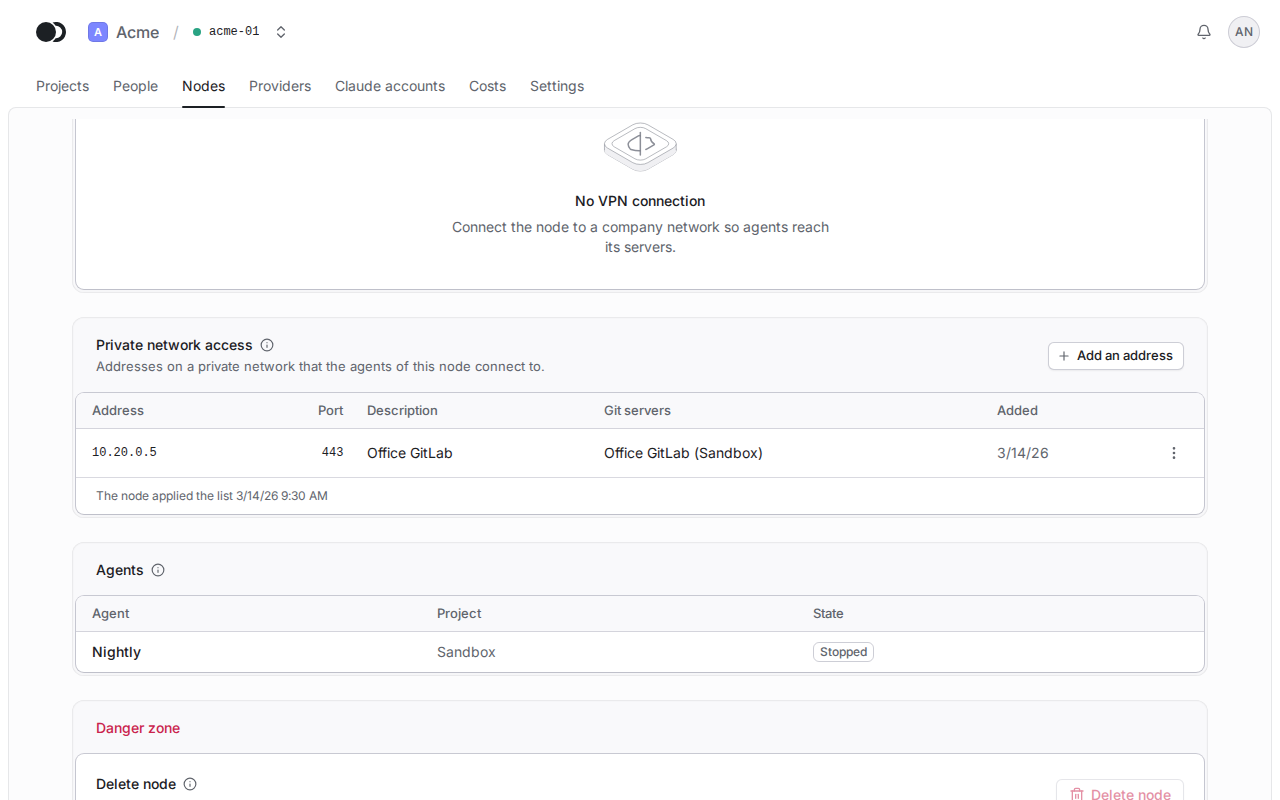
On the page of the node, in the Private network access section, click Add an address. Enter the address of the server, such as 10.20.0.5 or git.example.internal, and the port: 443 for https, 80 for http.
Step 2: Add a token with the mark
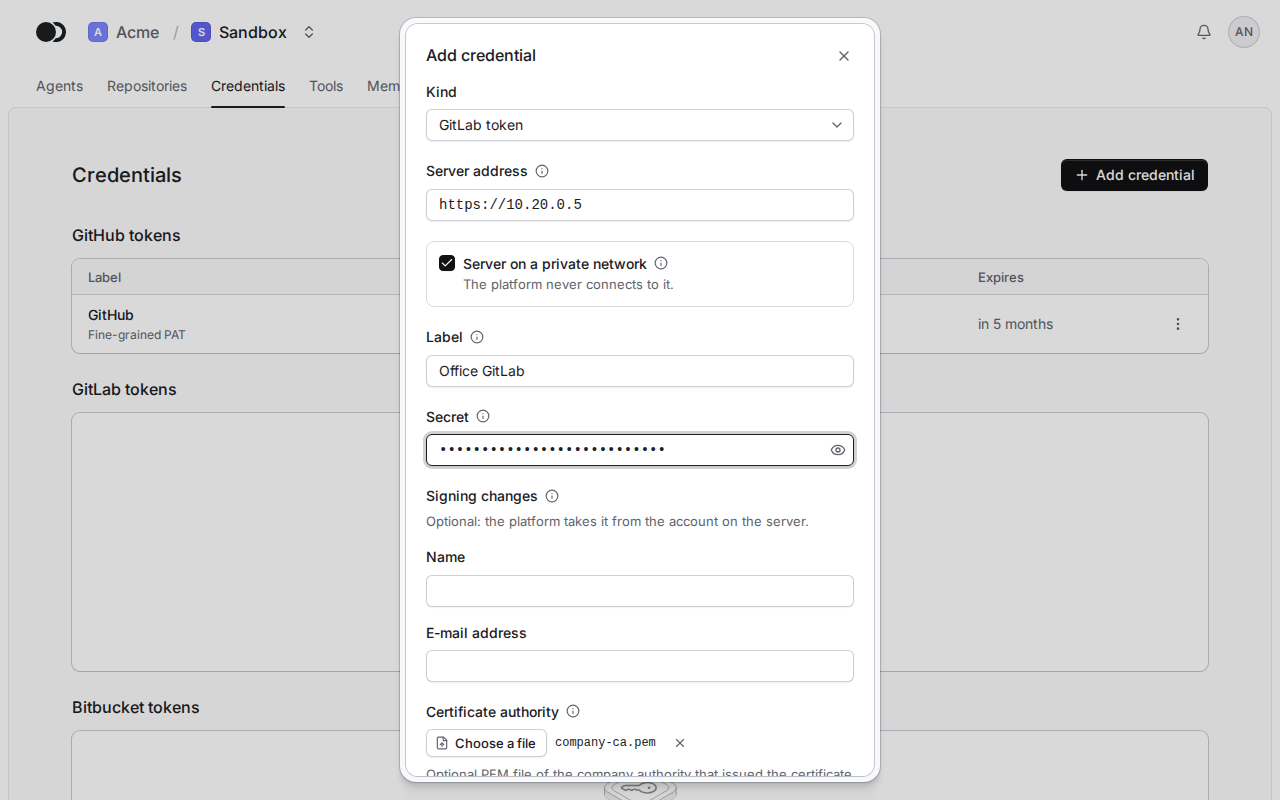
In the project, on the Credentials tab, click Add credential and pick GitLab token or Bitbucket token. Enter the address of the server, such as https://10.20.0.5, and tick Server on a private network. When a certificate authority of the company issued the certificate of the server, pick the PEM file of that authority under Certificate authority.
Step 3: See what the node says
The node with access checks the token when it is added, when its secret is replaced, every night and when you click Verify now. The Credentials tab shows the state of the token, with the node that checked it below.
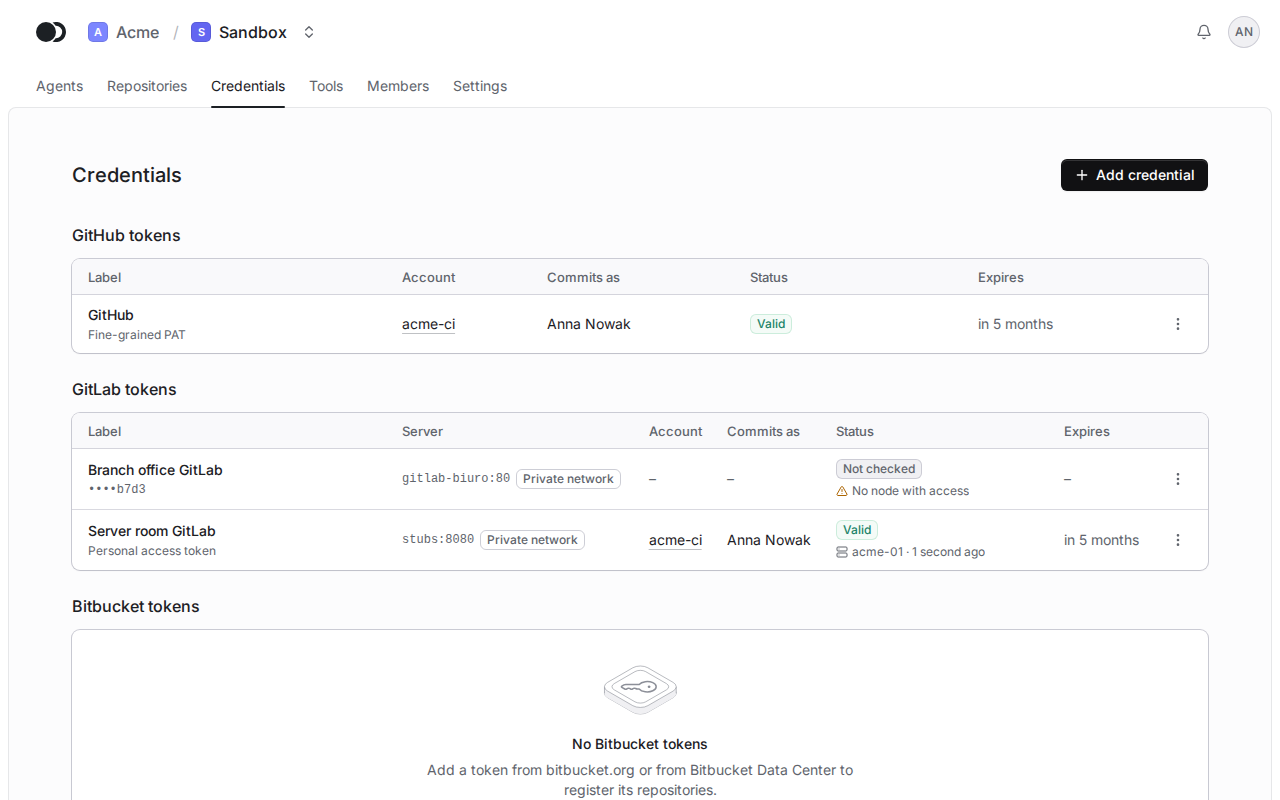
| State | What it means | What to do |
|---|---|---|
| Checking | The node checks the token. | Wait a moment. |
| Valid | The server accepted the token. | Nothing. |
| Invalid | The server refused the token. | Replace the secret. |
| Invalid, Server not answering | The node did not reach the server. | Check the network or the VPN of the node and click Verify now. |
| Invalid, Untrusted certificate | The node does not trust the certificate of the server. | Replace the secret and add the certificate of the authority. |
| Not checked, No node with access | No node lists the server. | Add the server to the list of a node, as in step 1. |
| Not checked, needs an update | The node cannot check tokens. | Update the node. |
| Waiting for the node | The node with access has no connection. | Check that the node runs and has a network. |
Step 4: Pick a repository from the list of the node
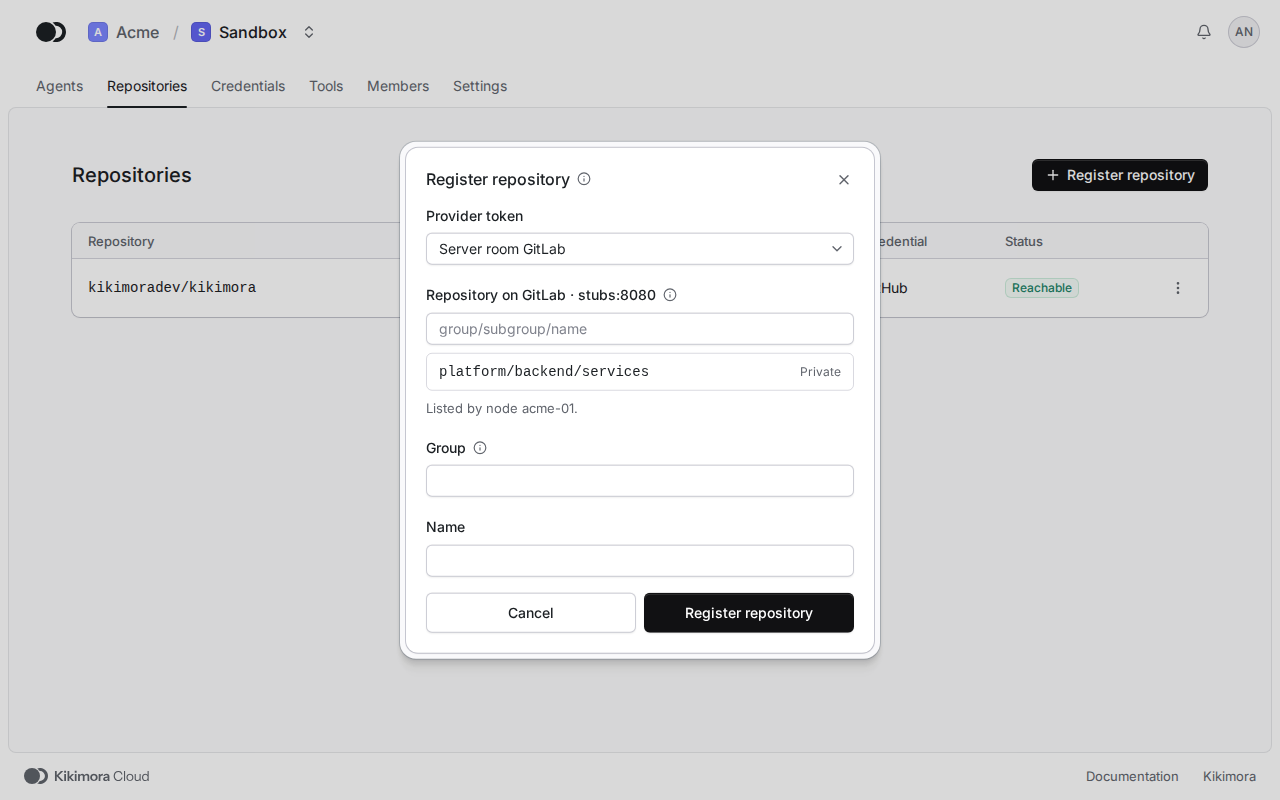
On the Repositories tab click Register repository and pick that token. Pick the repository from the list the node fetched and click Register repository.
Step 5: Register the repository by its path
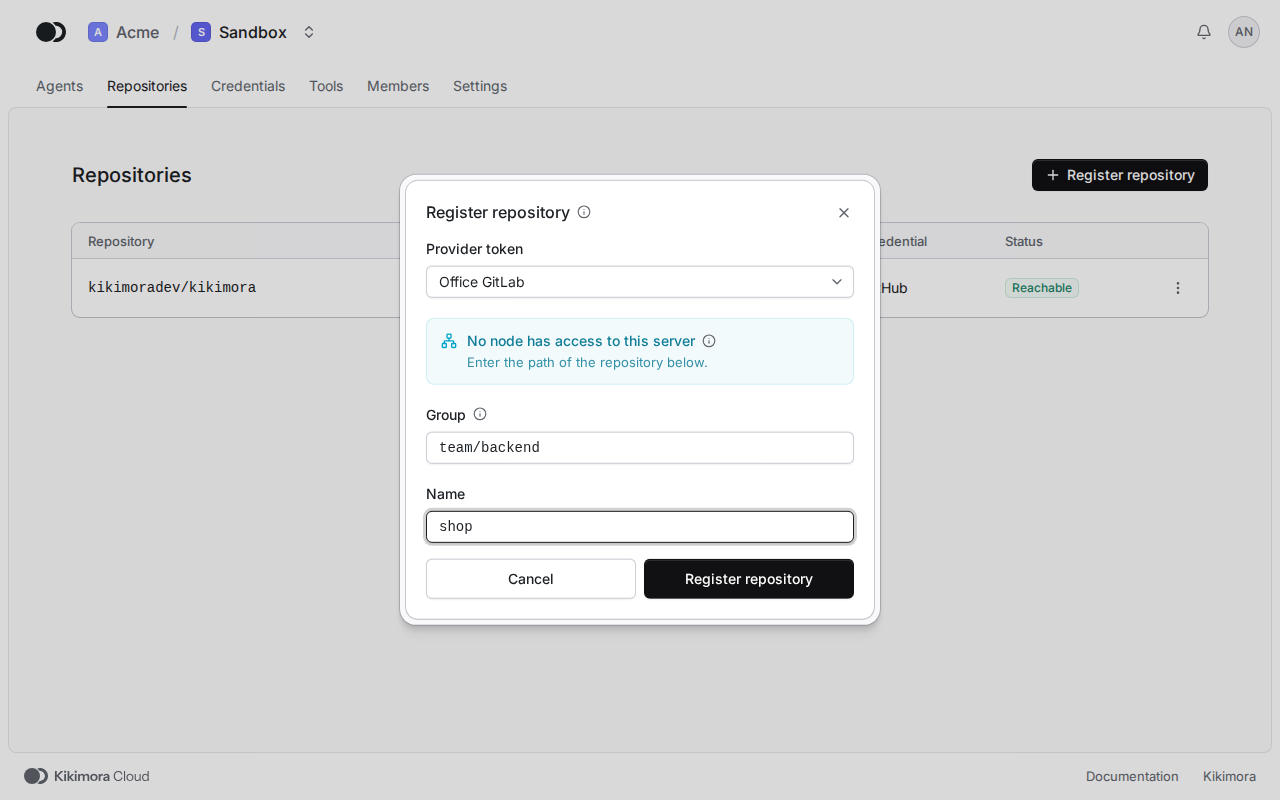
When the node cannot fetch the list, the dialog shows the reason. Enter the path then: on GitLab the group with its subgroups, such as team/backend, and the name, and on Bitbucket Data Center the project key and the name.
Step 6: Pick a node with access
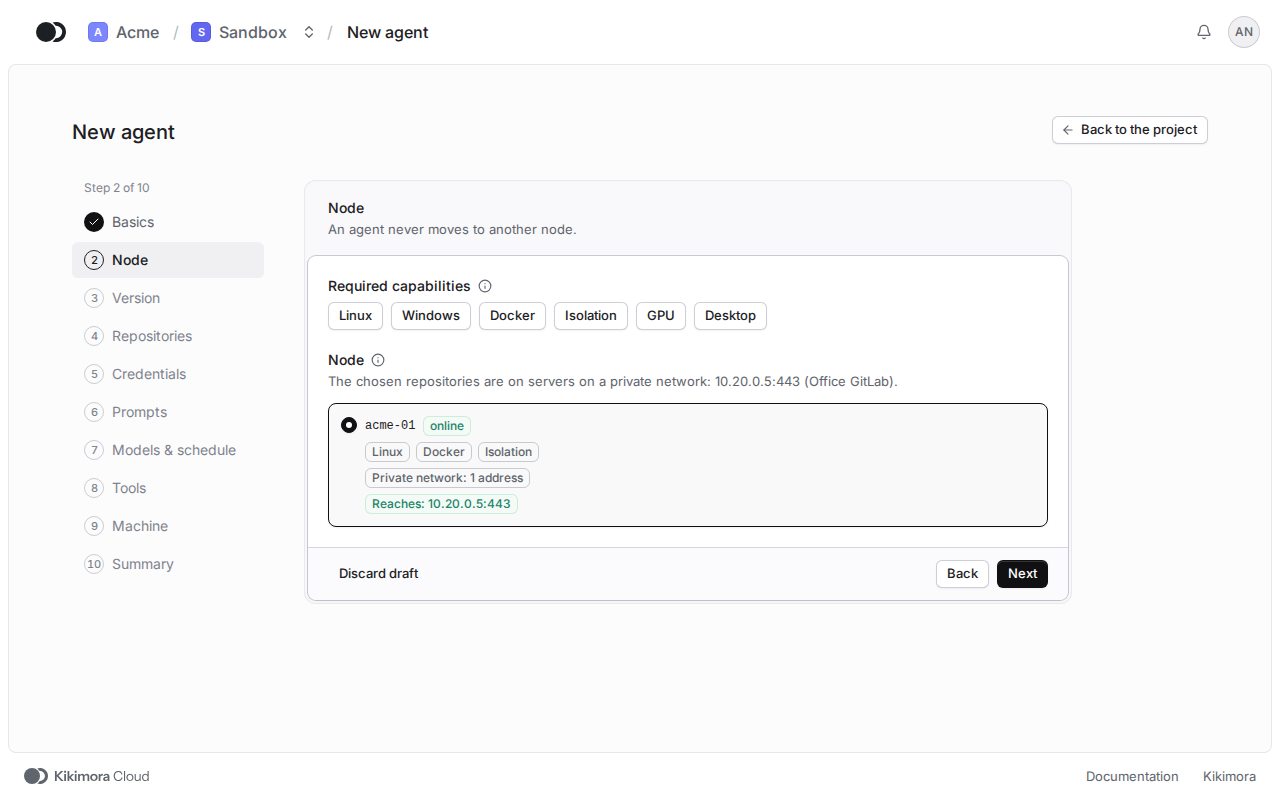
In the wizard of a new agent, on the Node step, pick a node marked Reaches. An agent with a repository of such a server runs only on a node that lists the server.
Matches the panel at cloud.kikimora.dev.