PanelProject
The company VPN of a node
A Linux node connects to a company network over a VPN so its agents reach the servers there, such as a company GitLab. The platform keeps the settings and the passwords, and the node sets up the tunnel itself.
The node connects to the VPN server by one of three methods. Before you start, ask the VPN provider for the data in the table.
| Method | What to ask the provider for |
|---|---|
| L2TP/IPsec | The address of the server, the shared key (PSK) and a separate account for the node: a login and a password. |
| WireGuard | A .conf file for the node with one server, that is one [Peer] section. |
| OpenVPN | An .ovpn file with the certificates and keys inside, and a separate account for the node when the server asks for a login. |
Do not give the node the account of a person. A VPN server usually holds one connection per account, so the node and a person on a shared account disconnect each other.
Step 1: Open the VPN connection section
On the page of a Linux node, above the Private network access section, click Connect to a VPN.
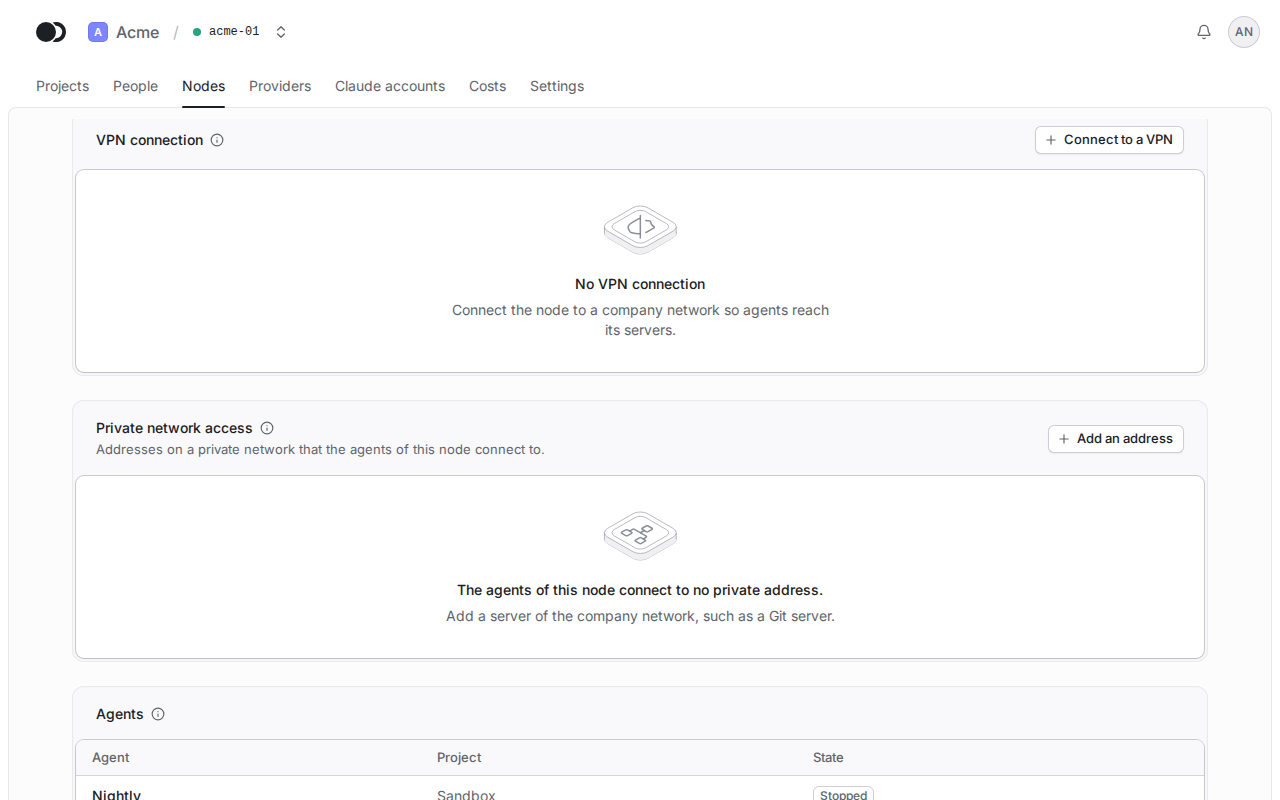
Step 2: Enter the data of the provider
Pick the method and enter the data of the provider, or choose its file. Under Company networks enter the networks the agents need, such as 10.20.0.0/16, and click Save and connect.
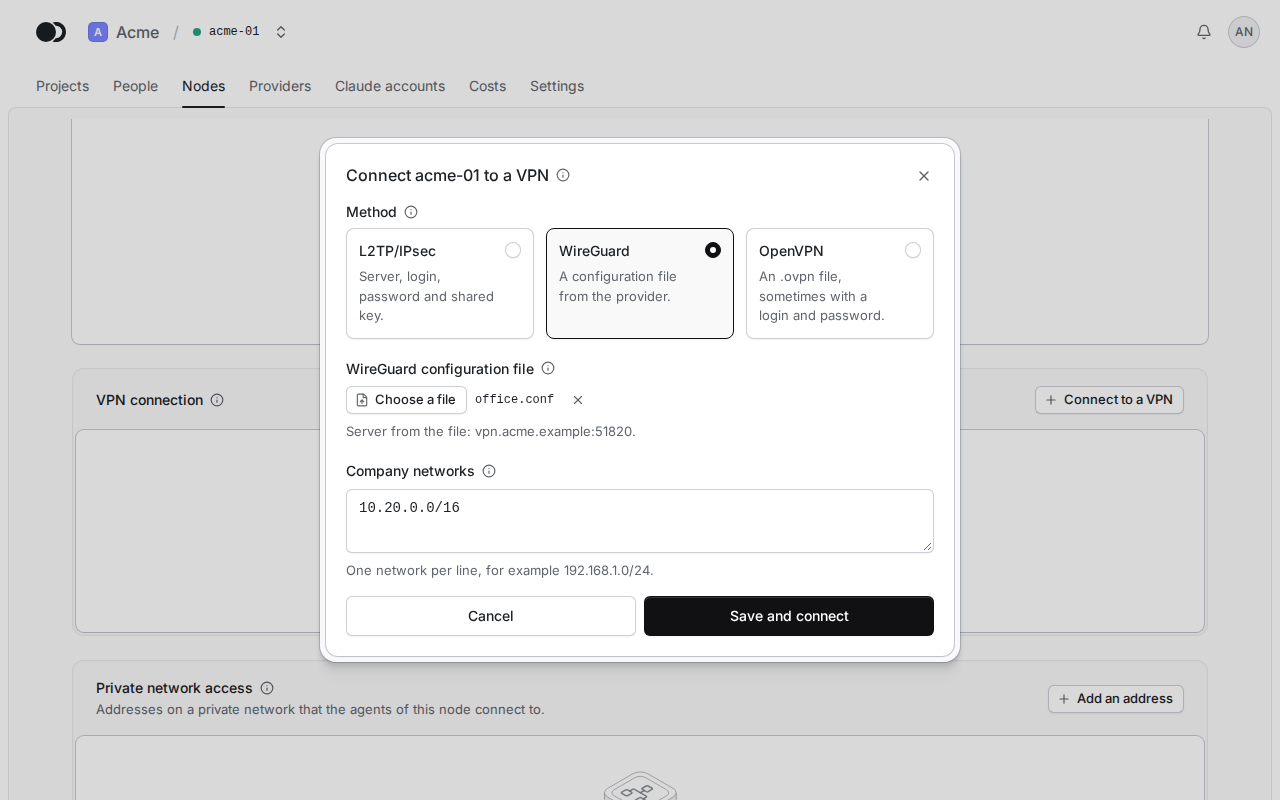
Only the company networks of the settings go through the tunnel, and the rest of the traffic of the node and its link to the platform go as before. Agents reach only the addresses on the access list of the node, so add the company server there, as the page A Git server on a company network describes.
Step 3: Check the state of the connection
Once the node sets up the tunnel, the section shows Connected and the address of the node in the company network. Change opens the form with the saved data, and Remove disconnects the node and deletes the passwords.
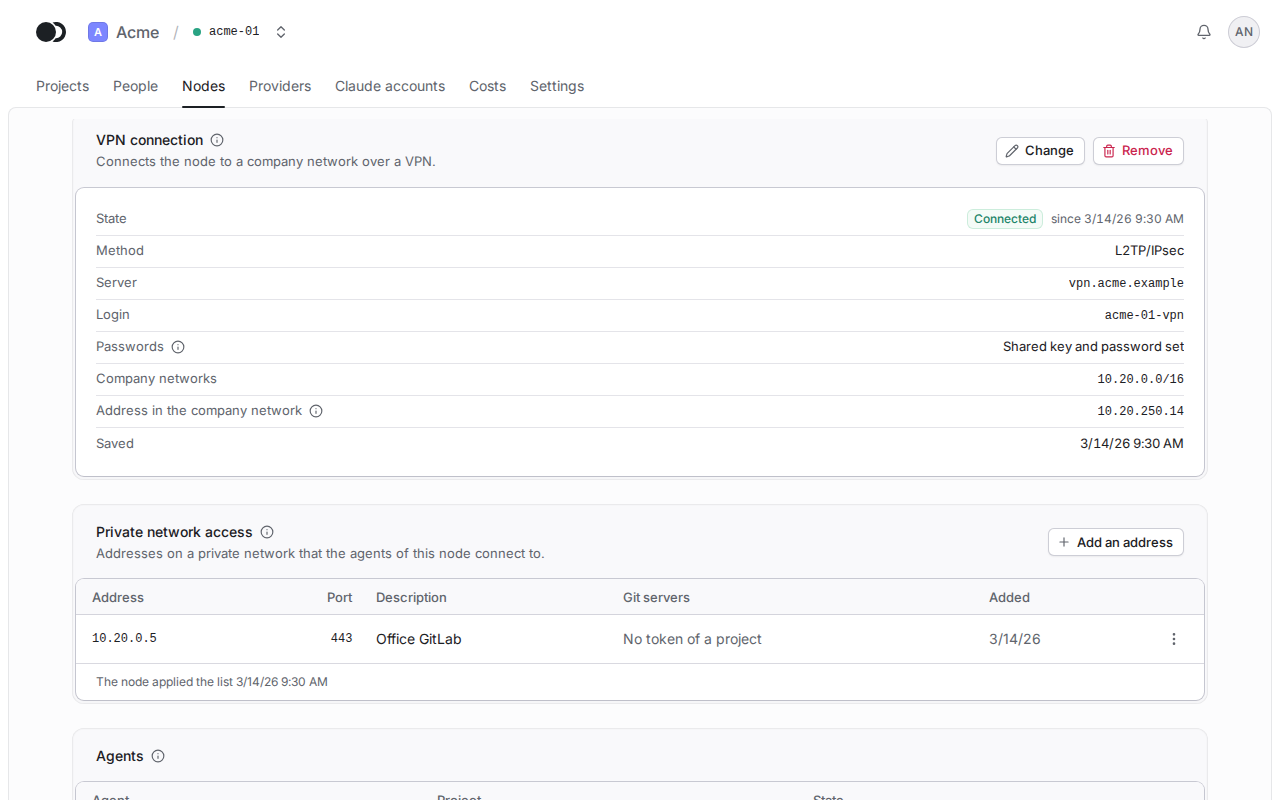
| State | What it means | What to do |
|---|---|---|
| Waiting for the node | The node has not taken the settings yet, or runs a release that does not know the VPN. | Update the node when the section asks for it, and otherwise wait a moment. |
| Connecting | The node sets up the tunnel. | Wait a moment. |
| Connected | The tunnel works. | Nothing, or add the server to the access list of the node. |
| Failed | The VPN server refused the node or does not answer. | Fix what the reason points at, as in the table below. |
| Unknown | The node is offline, and the section shows the last known state. | Check that the node runs and has a network. |
| Not available on this node | This is a Windows node or the node of the platform. | Use a Linux node. |
Step 4: Read the error
In the Failed state the box above the data gives the reason. When the tunnel stays down for 5 minutes, the organization admins get a notification.
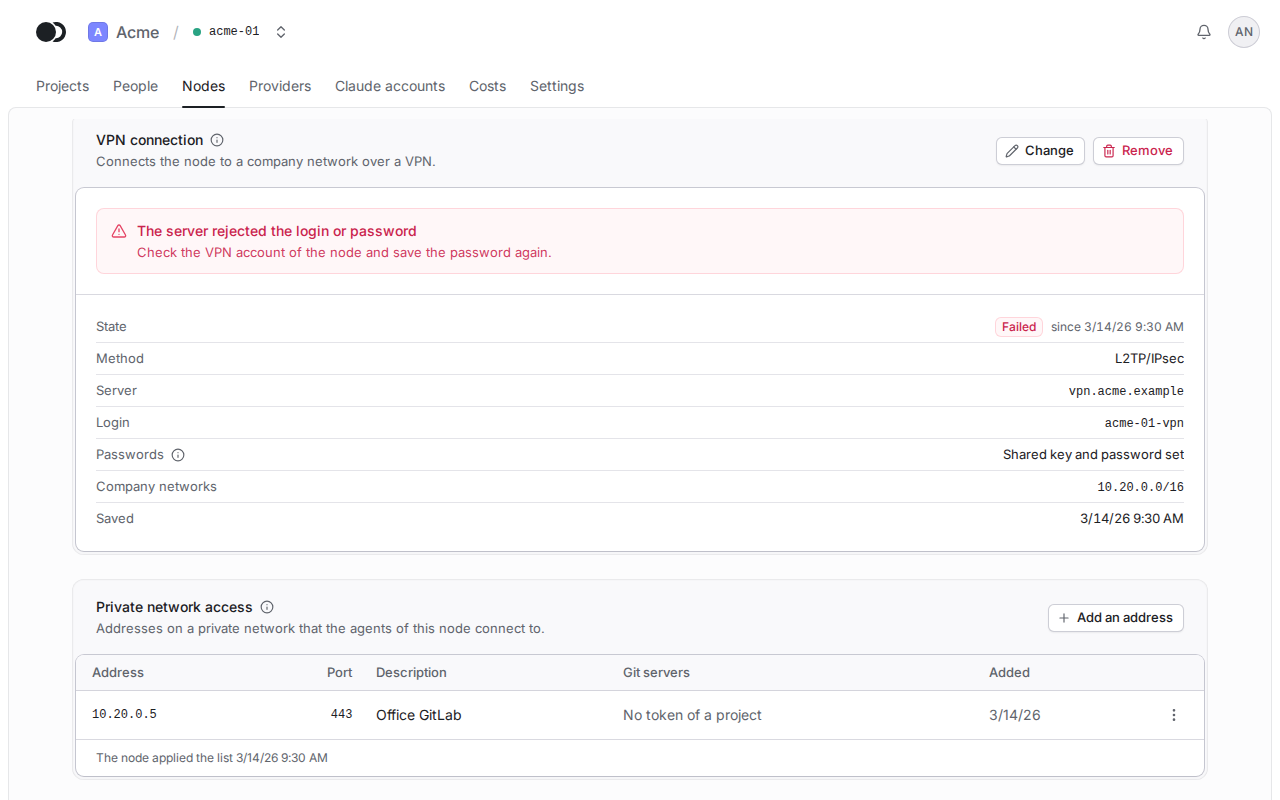
| Reason | What it means | What to do |
|---|---|---|
| The server rejected the login or password | The account of the node expired, or someone changed its password. | Ask the provider for a new password and save it with Change. |
| The server rejected the shared key | The provider changed the shared key of the server. | Enter the new shared key with Change. |
| The VPN server does not answer | The address of the server is wrong, or a firewall keeps the node out. | Check the address with the provider. |
| The server rejected the configuration file | The file is old or was issued for another client. | Ask for a new file and choose it with Change. |
| The VPN server does not answer or does not know the key from the file | WireGuard got no answer from the server: the address is wrong, or the provider has not registered the key from the file. | Check the address and ask the provider to confirm that the key from the file is registered with them. |
| The machine of the node does not support this method | The machine lacks a kernel module or a device the method needs. | Install the kernel modules of the machine, such as linux-modules-extra on Ubuntu, and restart the node. |
| The connection failed | Another error; the section shows what the server answered. | The node retries every minute. When the error stays, show the answer of the server to the provider. |
Matches the panel at cloud.kikimora.dev.